5.3 Configuring and Starting a Job (Auto-Run)
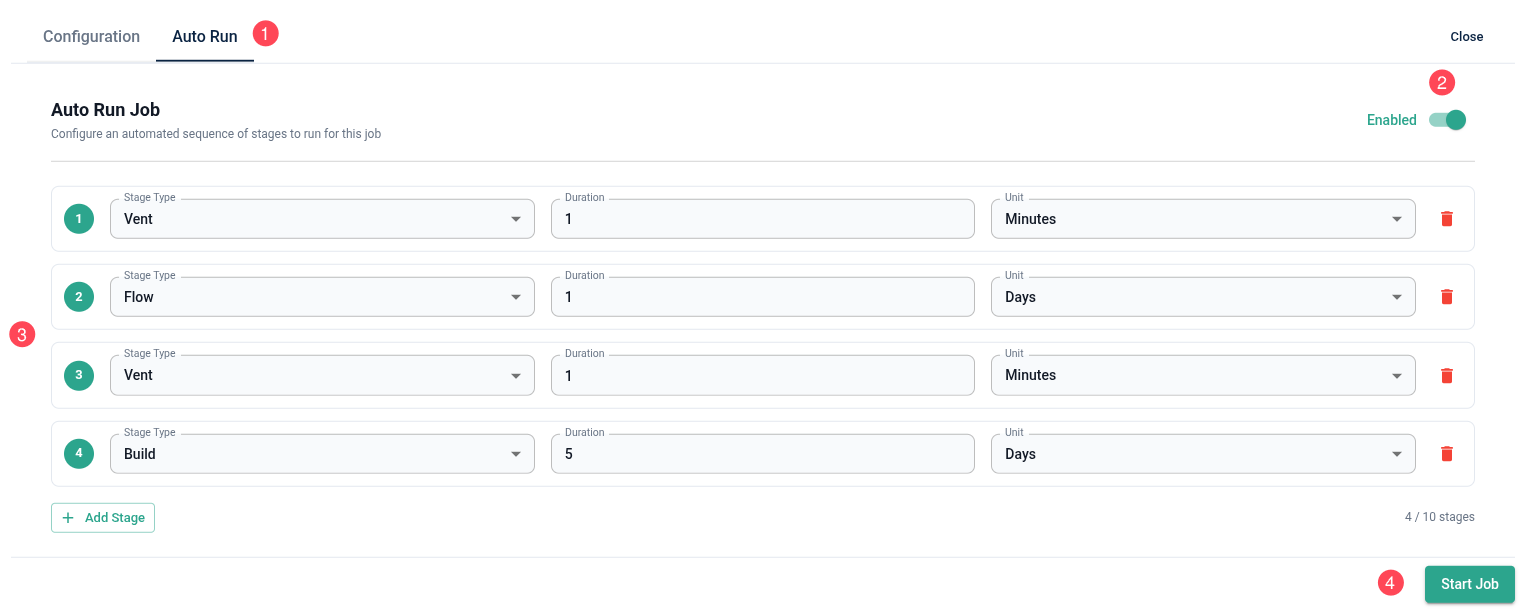
The Auto Run feature lets you configure an automated sequence of stages to run for a job, so it can move through each phase without manual intervention.
Stage Types
There are three stage types available:
- Vent – releases pressure/air for the set duration
- Flow – runs the flow process for the set duration
- Build – runs the build process for the set duration
Each stage's duration can be set using any of the following units: Minutes, Hours, or Days.
Setting Up an Auto Run Job
- Open the job and select the Auto Run tab.
- Toggle Enabled in the top-right corner to turn on Auto Run for this job.
Build your profile by adding stages:
- Select the Stage Type (Vent, Flow, or Build) from the dropdown.
- Enter the Duration.
- Select the Unit (Minutes, Hours, or Days).
- Click + Add Stage to add additional stages, repeating as needed. Stages run in the order listed (1, 2, 3...) and can be reordered or removed using the trash icon.
- You can configure up to 10 stages per job.
- Once your profile is complete, click Start Job in the bottom-right corner to begin the automated sequence.
Auto Run Status
Once a job is running under Auto Run, a banner will appear on the job screen indicating that Auto Run is active.