3.5 Managing Sub-Tenants — Administrator
Organizations in VENTMEDiC® can be structured into sub-tenants to separate devices, jobs, and users by region, business unit, or customer account. Devices and Field Operators are assigned at the tenant or sub-tenant level, not to individual users directly. This section describes how to create sub-tenants and assign devices to them.
3.5.1 Creating a Sub-Tenant (Coming Feature)
- Log in to the VENTMEDiC® Online Browser Application at https://app.VENTMEDiC.com/
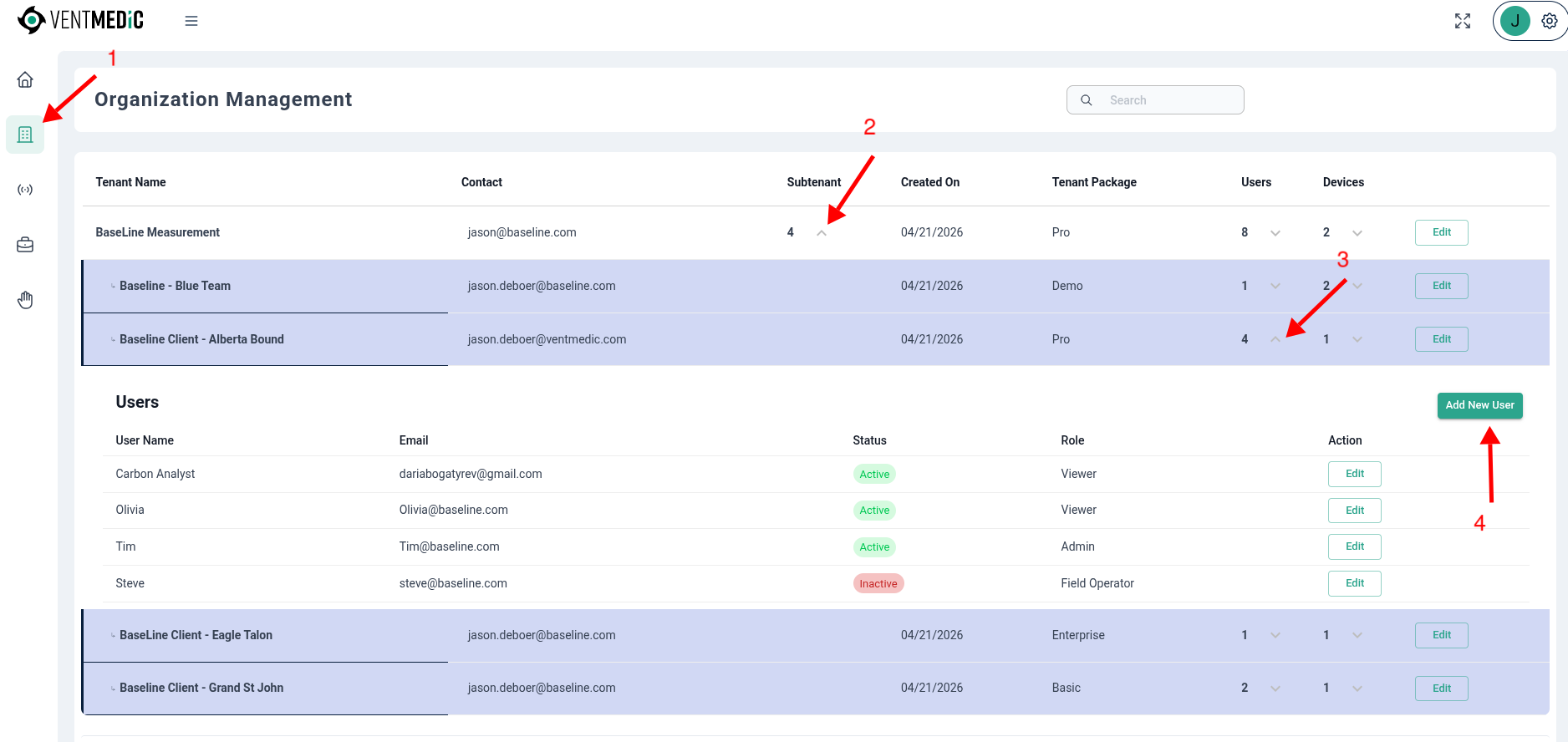
- Navigate to Organization Management using the left-hand navigation menu.
- Click the down arrow under the Sub-Tenants section to expand it.
- Click Add New Sub-Tenant.
- Enter a name for the sub-tenant (e.g. region, business unit, or customer account).
- Confirm and save. The sub-tenant now appears in the Sub-Tenants list.
3.5.2 Assigning Devices to a Tenant or Sub-Tenant
Devices are assigned to a tenant or sub-tenant, which in turn determines which Field Operators can see and use them.
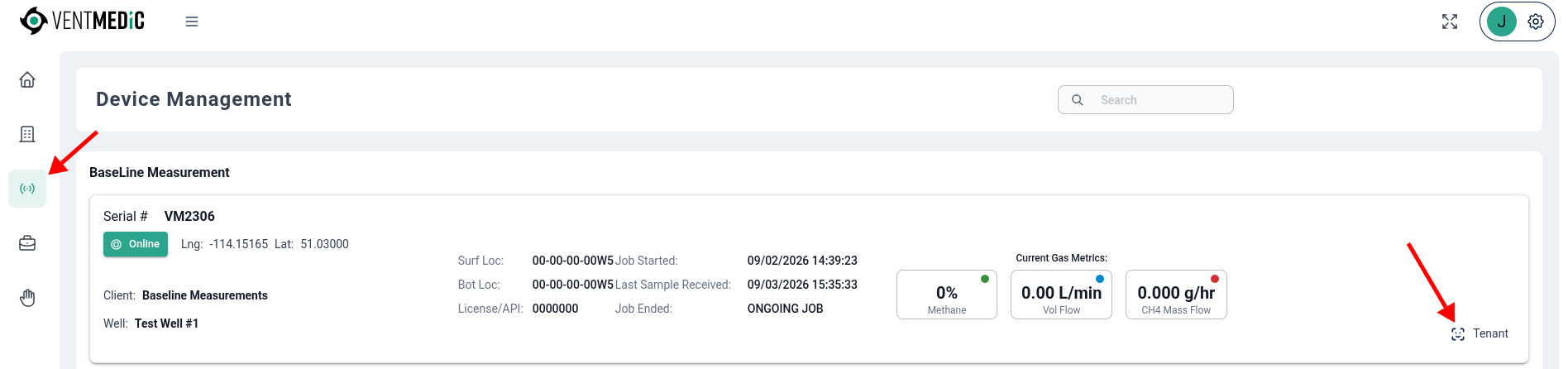
- Navigate to Organization Management > Devices.
- Locate the device by serial number.
- Click Tenant and select the target tenant or sub-tenant from the dropdown.
- Save the change. Field Operators within that tenant or sub-tenant will see the device in their Device Management list immediately.

3.5.3 Adding Users to a Sub-Tenant
- Navigate to Organization Management > Sub-Tenants.
- Select Sub-Tenant drop down arrow to list all of the subtenants within the parent tenant.
- Select the drop down arrow next to Users to list all of the current Users within the sub-tenant.
- Click Add User.
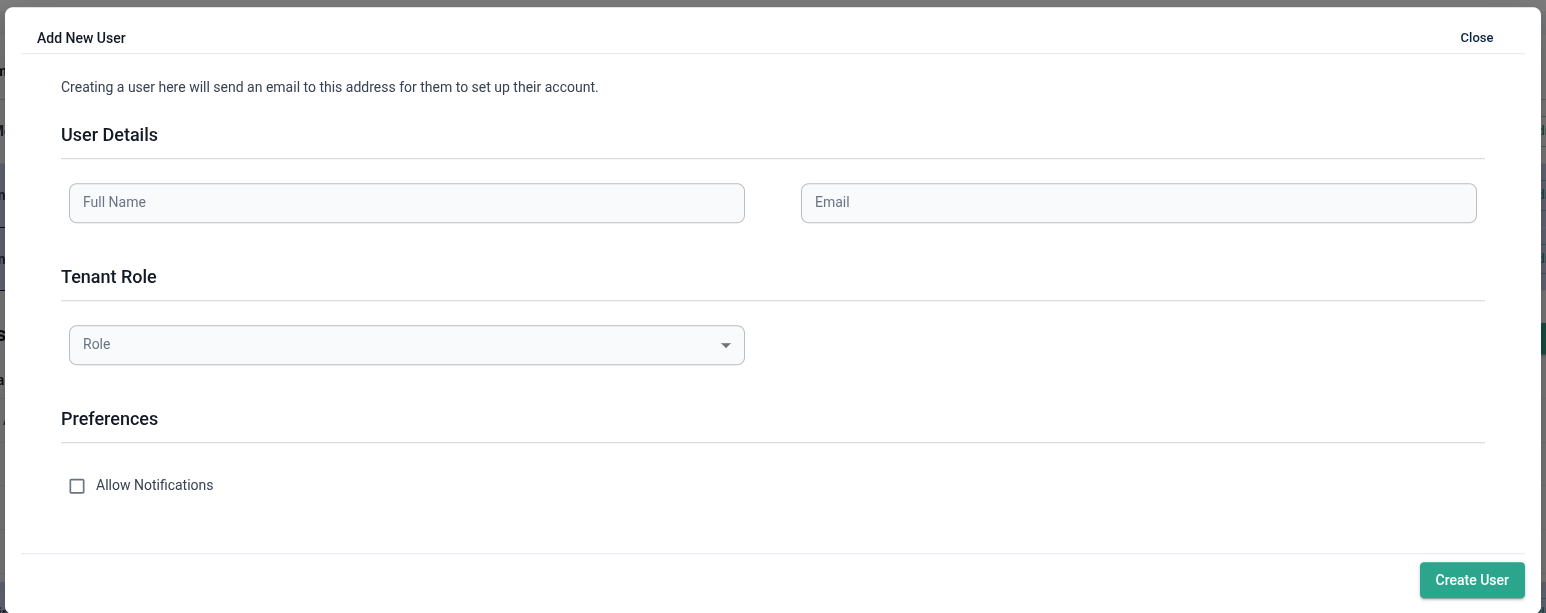
- Fill in the user details and type of role you wish to give the user.
- Click Create User to finalize the user.